
Revisit Commonly Used SQL Queries with Database Views
Save time and make your life easier


Key Takeaways
Creating views based from commonly used queries can save you time and energy.
Views are simple to create.
Views are query-able, just like a regular database table.
Introduction
Let’s say that there is a SQL query that you repeatedly use. At some point you say to yourself, “I keep using this query. I should make this query easily accessible so I do not need to re-write it.” That makes sense. One way to make sure that this query is saved and ready to use when need be is to save the query to a SQL script. That way, you can just open the script and execute the query without needing to rewrite said query. Another way to re-use a commonly used query is to create a view from the query.
A view is an object that is created from a query and is query-able just like a database table. Unlike a table, however, a view does not take any physical storage space on the database. Furthermore, while tables in a relational database management system (RDBMS) are structured according to specific guidelines called normal forms, views need not be so structured. Let’s now see how to create and use views.
Setup
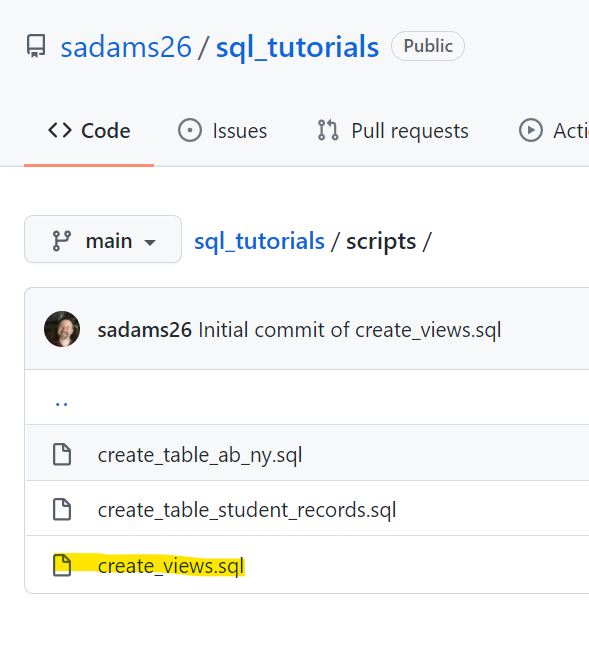
All materials can be found on GitHub in the sadams26/sql_tutorials repository. Specifically, the SQL code for this tutorial is stored in the create_views.sql file in the scripts directory.
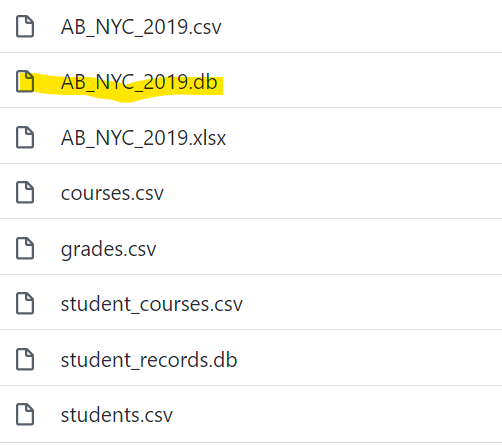
All data in this tutorial come from the AB_NYC_2019.db SQLite database file, which is stored in the data directory on the GitHub repository.
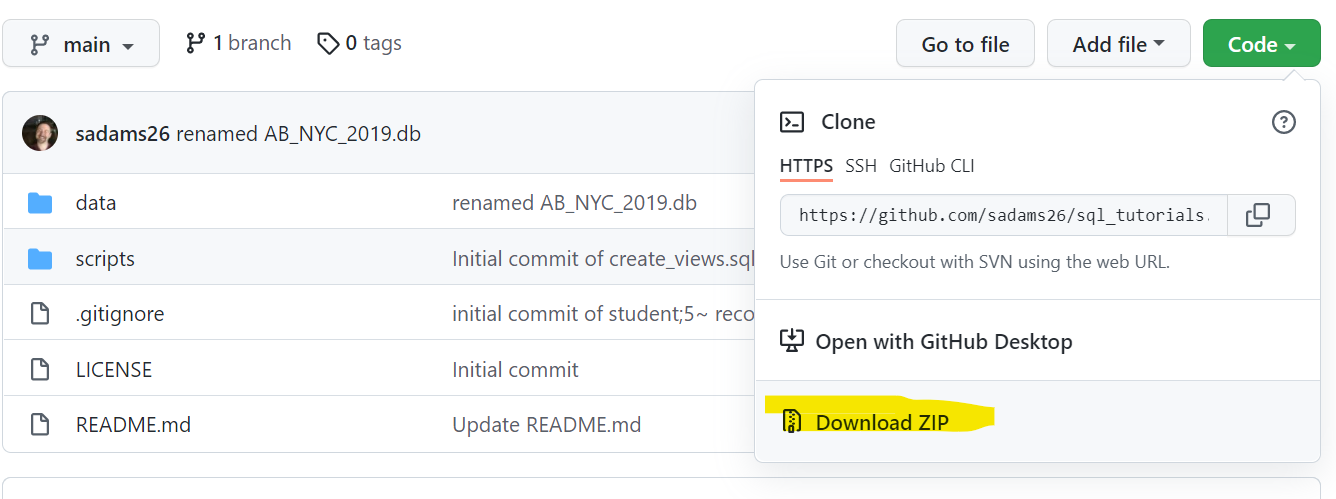
If you are unfamiliar with Git commands you can download the sql_tutorial repository as a zip file by clicking on the Code button on the sql_tutorial GitHub page. After downloading, be sure to extract the contents of the zip file to a desired location on your computer.
All queries below are written and run in DbVisualizer. If you do not have DbVisualizer currently installed on your computer visit the DbVisualizer installation page and follow the instructions. If you need instructions on connecting to a SQLite database, please see the “Using DbVisualizer to Generate an ERD” section in my previous article, Why Can't We Just Have a Single Table? Navigating Relationships in Relational Databases.
Creating a View
Let’s consider an example where we want to use an aggregate function to see the mean price per listing by neighbourhood group using the follow query.
SELECT
        AVG(price) as 'mean price',
        neighbourhood_group
FROM AB_NYC_2019
GROUP BY neighbourhood_group;
Remember that a view is an object that holds a specific query but nonetheless acts like a table. As such, to create a view all we need to do is assign the desired query to a new view. This means that we can reuse the query above and just add a line of code that creates a view to the start of the query.
CREATE VIEW mean_price_nbg AS
SELECT
        AVG(price) as 'mean price',
        neighbourhood_group
FROM AB_NYC_2019
GROUP BY neighbourhood_group;
Here, I named the view mean_price_nbg, but feel free to name your view differently. After executing this query, refresh your database connection and you will be able to see the newly created view in Schema→Views under your connection shown on the left side of the DbVisualizer window (see below).

Now, you can simply write and execute a SELECT * statement on the view to see the mean price per listing by neighbourhood group!
SELECT * FROM mean_price_nbg;
Deleting a View
Over time there may be some views that are unnecessary. So, how do you delete a view you no longer need? All you need is one line of code: DROP VIEW followed by the name of the view you wish to remove.
DROP VIEW mean_price_nbg;
Wrapping Up
Now you have a piece of knowledge that can help to make your work with relational databases more efficient, saving you time and energy. Be sure to subscribe below for more tutorials and advice to help you on your data career journey.
